
Moving your saves
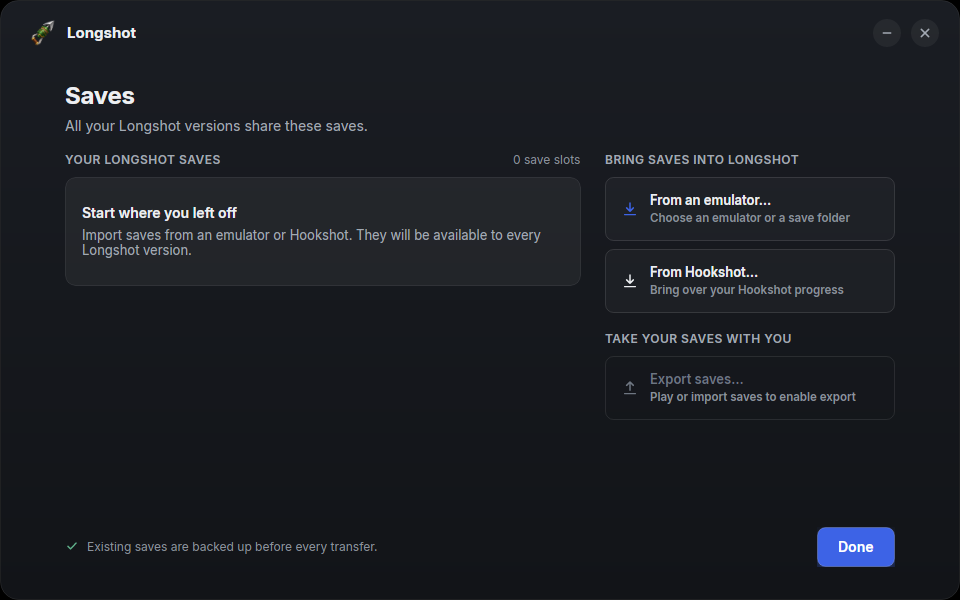
Longshot uses the same save files as Hookshot and supported emulators. Use the Longshot Launcher to import or export saves. Open Manage saves on the launcher’s home page, under the default version. On Windows, each version’s Saves button opens its saves.
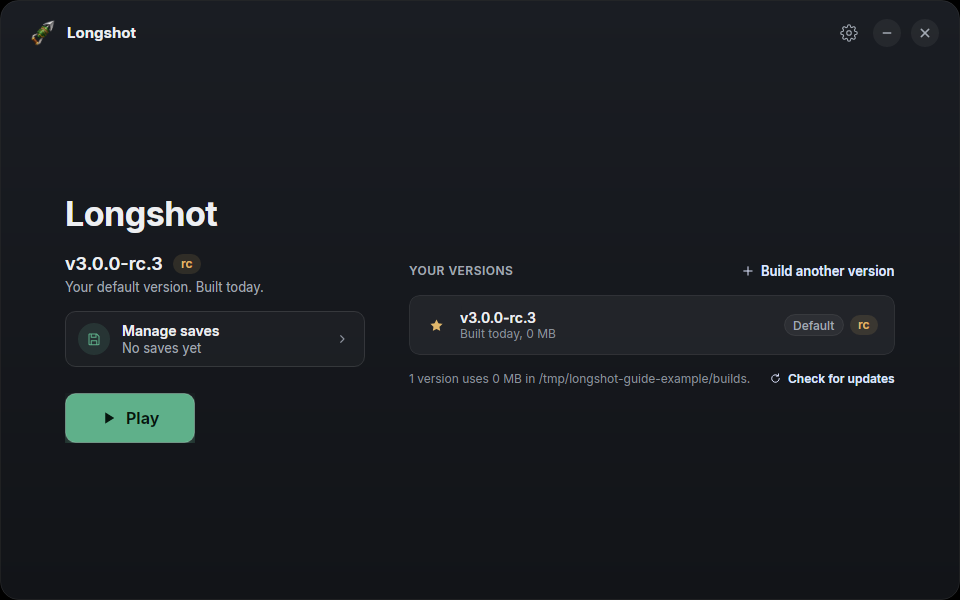
The launcher backs up existing saves before replacing them. Close Longshot, Hookshot and any emulators first; the launcher won’t copy while they are running. Copying replaces the destination’s slots; it does not merge saves.
Before you start
- Save and quit. Save in the game, then quit it.
- Pick your adventure.
Import a save into Longshot
From an emulator
-
Start Longshot once and save, so its save folder exists, then quit it.
-
On the Saves page, choose From an emulator…. The launcher lists the emulators whose saves it found on this PC (Lichii, Eden, Eglantine, Orchid, PokeDinner, Frizti and NX2navi), with their slots and save times.
-
Pick the emulator and, if asked, the profile you play on. If it isn’t listed (a portable install, a copy on another drive), select Another folder…. Press Continue, then pick the save folder, or a folder that holds one.
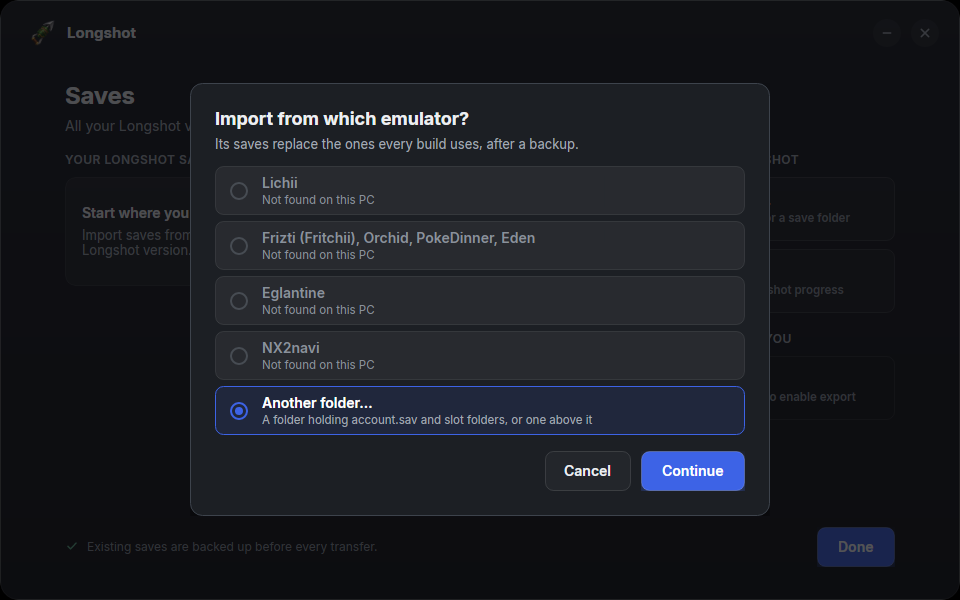
Longshot Launcher v1.0.0-rc.3 on Linux. -
Check FROM, TO and the replacement warning on the confirmation screen. Choose whether to keep the destination’s game settings, and check the backup location.
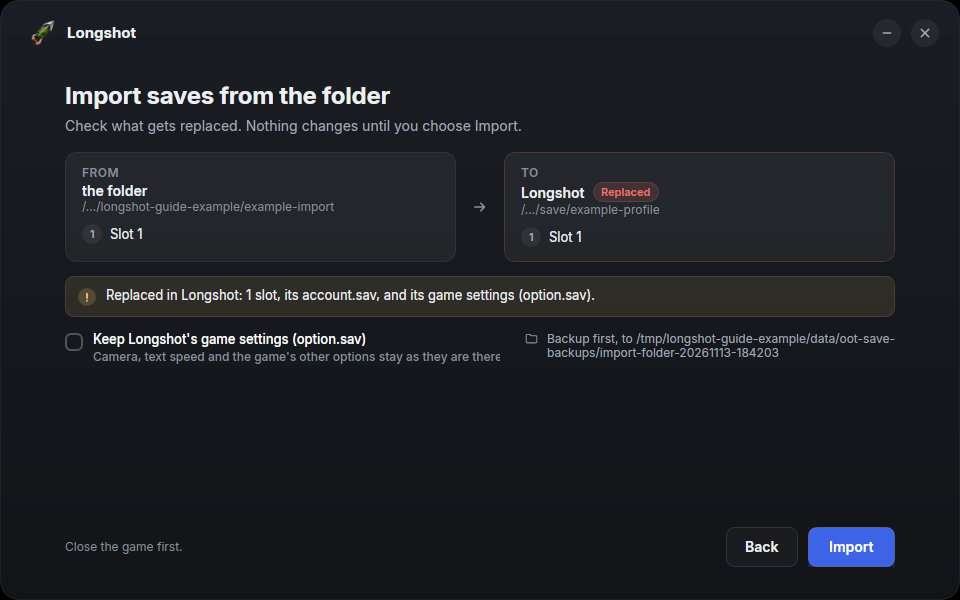
UI-only example from Launcher v1.0.0-rc.3 on Linux. When the source and destination are correct, press Import.
-
Start Longshot and load your slot.
From Hookshot
Hookshot, the project Longshot continues, writes the same save files, so a Hookshot adventure carries on in Longshot.
- On the Saves page, choose From Hookshot…. (When the launcher finds Hookshot saves, its home page also offers this once.)
- Pick the save. The launcher looks where Hookshot keeps them; for anywhere else, use Choose a folder….
- If Longshot already has a save, the launcher asks before replacing it, backs it up whole, and tells you where.
Hookshot’s own saves stay exactly as they were: nothing in its folders is moved or changed.
Export a save from Longshot
- Start the emulator you’re going to, save once so its folders exist, then quit it. Close Longshot too.
- On the Saves page, choose Export saves…, and pick the emulator, or Another folder… for anywhere else. Press Continue and choose a folder if asked.
- Check the source and destination on the confirmation screen, then press Export.
- Open the emulator and load your slot.
The emulator’s save is backed up before it’s replaced. The launcher doesn’t export to Hookshot; the save script can.
Between Longshot builds
- Windows: each build keeps its own saves. On the destination build’s Saves page, choose From another version…. A new build or an update can also take your default build’s saves itself: Move my saves, in the build wizard’s second step.
- Linux and Steam Deck: every build already shares the same saves, so there’s nothing to copy.
Where Longshot keeps them
| Your saves | The launcher’s backups | |
|---|---|---|
| Windows | <game folder>\user\save\ (the game folder is %USERPROFILE%\Games\Longshot unless you chose another) |
%LOCALAPPDATA%\Longshot\oot-save-backups |
| Linux and Steam Deck | ~/.local/share/longshot/save/ |
~/.local/share/oot-save-backups |
To keep your own copy, copy the save folder while the game is closed. Keep save files private.
Undo a copy
Each copy’s backup is a folder in the backups folder above, named by when it was made. Close the game, then put that folder’s contents back into the save folder, the whole set of slots at once. If something looks wrong, stop before copying again and ask on Discord, without posting your save files.
For advanced users: the save script
Longshot has the same transfers on the command line: scripts/oot_saves.py, which needs only
Python 3. It also exports to Hookshot, handles custom folders, portable installs and several profiles, and previews a
copy with --dry-run:
python -I scripts/oot_saves.py list # every save it finds, its slots and when each was savedpython -I scripts/oot_saves.py import lichii # Lichii -> Longshotpython -I scripts/oot_saves.py export lichii # Longshot -> LichiiSaves: the files, the script and the emulators has every command and option, where each emulator keeps its saves, copying by hand and troubleshooting.